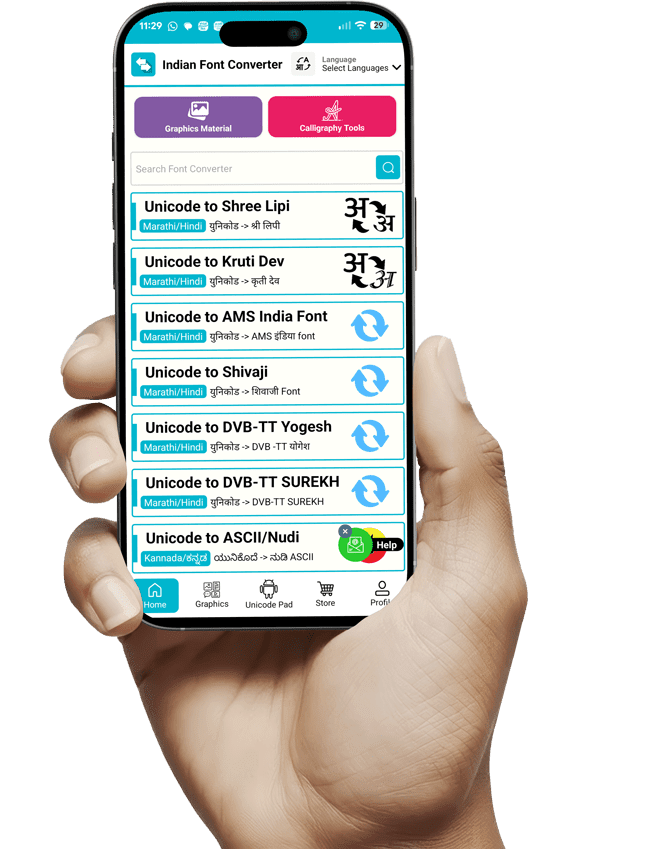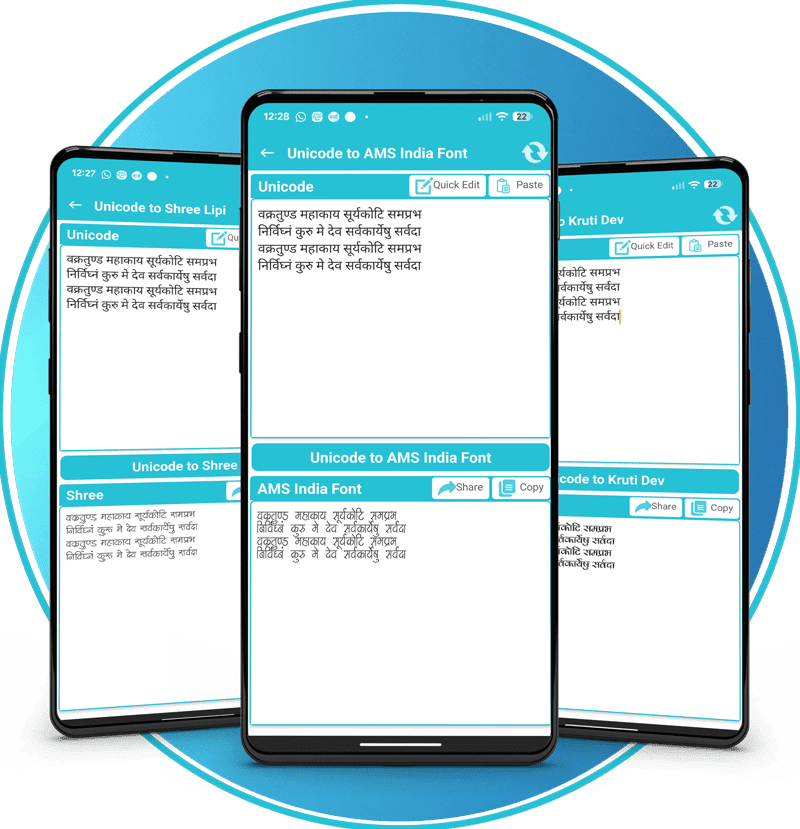
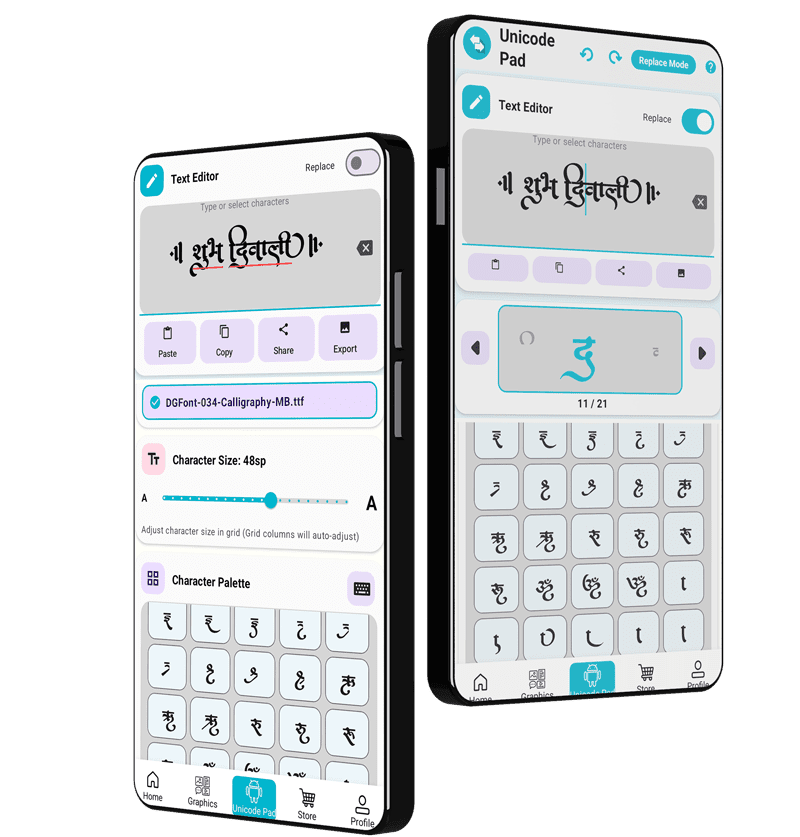

Tired of remembering all custom fonts keyboard layout and typing getting difficult day by day. Here is easiest way to convert your Unicode text into your intended font.
Text will appear on the top box
Get converted text from bottom box
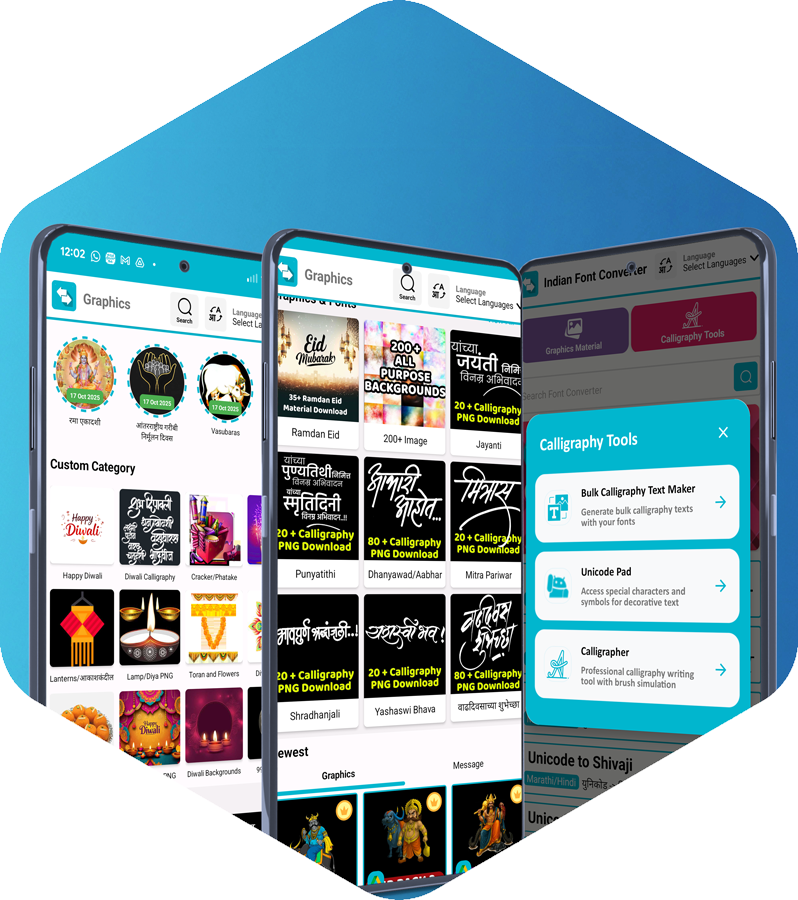
Get All the Trending Graphics Material Like Backgrounds, PNG, Photos, Fonts At a Single Place
Add Font From Phone
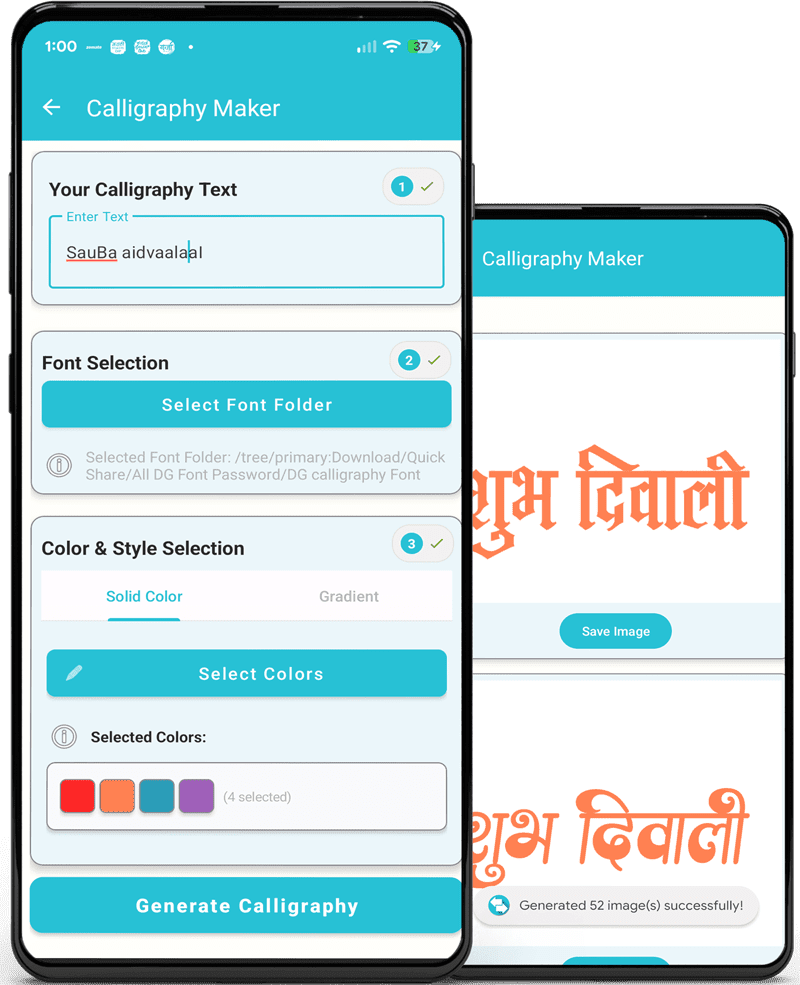
Add calligraphy font from your phone into app by clicking plus button. Font will be saved into app for future use.
See Detail Character Map
You will see detailed character map of selected font with only available characters into the font
Replace Character Variation
To replace specific character with its variation select it using arrow and replace from character map.
Copy or Export PNG
Once calligraphy ready use it using copy share or export calligraphy as a PNG with various options like size and color
This tool helps you type in Indian languages using English letters. Simply type English words and they will automatically convert to your selected language.
यह टूल आपको अंग्रेजी अक्षरों का उपयोग करके भारतीय भाषाओं में टाइप करने में मदद करता है।
Select Module: Choose the target font format from the home screen (e.g., "Unicode to Shree Lipi" or "Unicode to Kruti Dev"). Input: Type or paste your standard Marathi/Hindi text into the top text box. Convert: Tap the central Convert button. The converted code will appear in the bottom box. Export: Click Copy to save the code to your clipboard or Share to send it to a design app.
Access: Open the Calligraphy Generator tile from the dashboard. Create: Type your text (e.g., a name or greeting) in the input field. Customize: Select a calligraphy style from the bottom list and choose a background or color gradient. Save: Tap the Export/Save button to download the design as a high-quality PNG with a transparent background.
Navigate: Select the Multilingual Text Translator feature. Setup: Choose your input language (English) and target language (Marathi/Hindi). Type: Enter text in English and press the Spacebar; the app automatically transliterates or translates it into the target script. Use: Copy the resulting text to use in the Font Converter or Calligraphy modules.
Browse: Go to the Graphics or Design Hub section to view assets organized by category (e.g., Festivals, Backgrounds, PNGs). Select: Tap on a thumbnail to preview the image or PSD file. Download: Click the Download button to save the asset directly to your device's gallery for use in banner editing.
Initiate: Tap the Crown icon or Remove Ads banner in the app interface. Account: Log in using your Google Account if prompted. Purchase: Select a plan (Weekly, Monthly, or Yearly) and complete the payment via Google Play to remove ads and earn "Post Credits" for premium downloads.
We have several powerful plans to showcase your business and get discovered.